DevTools Panel
Most operations available in this panel (Create, Update, Delete, Call Method) write directly to the database and are irreversible. Only the Search operation is safe as it is read-only.
- Never run write or delete operations on a production database unless you are certain of what you are doing.
- When in doubt, always test on a test database first.
The DevTools Panel is a full RPC testing interface embedded directly in your browser's developer tools. It lets you query, create, update, delete and call methods on any Odoo model without leaving your browser.
Opening the panel
- Open your browser's DevTools (F12 or Ctrl+Shift+I / Cmd+Option+I on macOS).
- Look for the Odoo Toolbox tab in the DevTools tab bar.
- Click it - the panel opens and automatically connects to the current Odoo page.
If an error message appears, make sure you are on an Odoo page and connected to the backend (not the website).
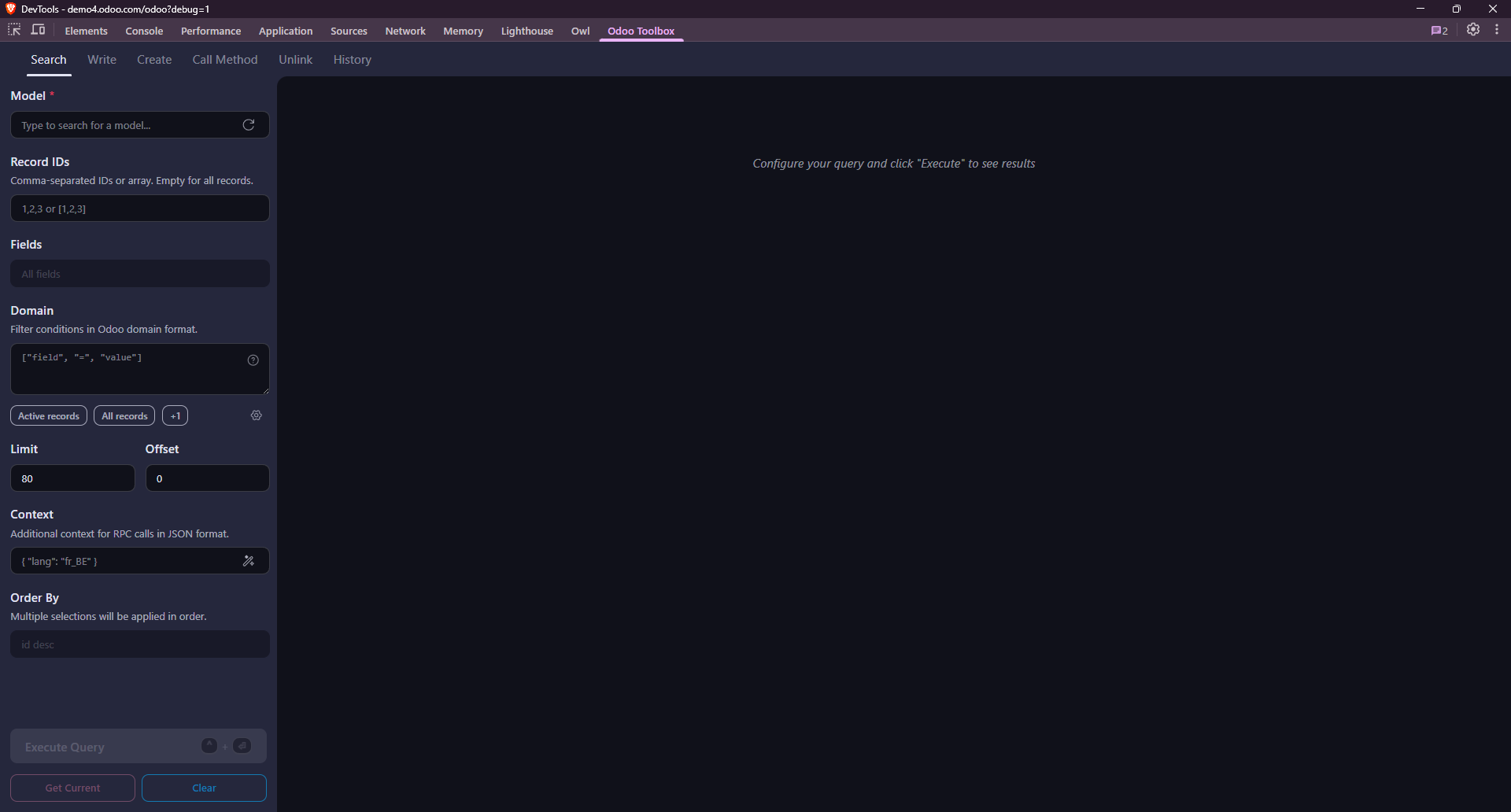
The interface
The panel is divided into two main areas:
- Left / top - Query builder: where you configure the model, operation, domain, fields and payload.
- Right / bottom - Response viewer: where the JSON response is displayed after execution.
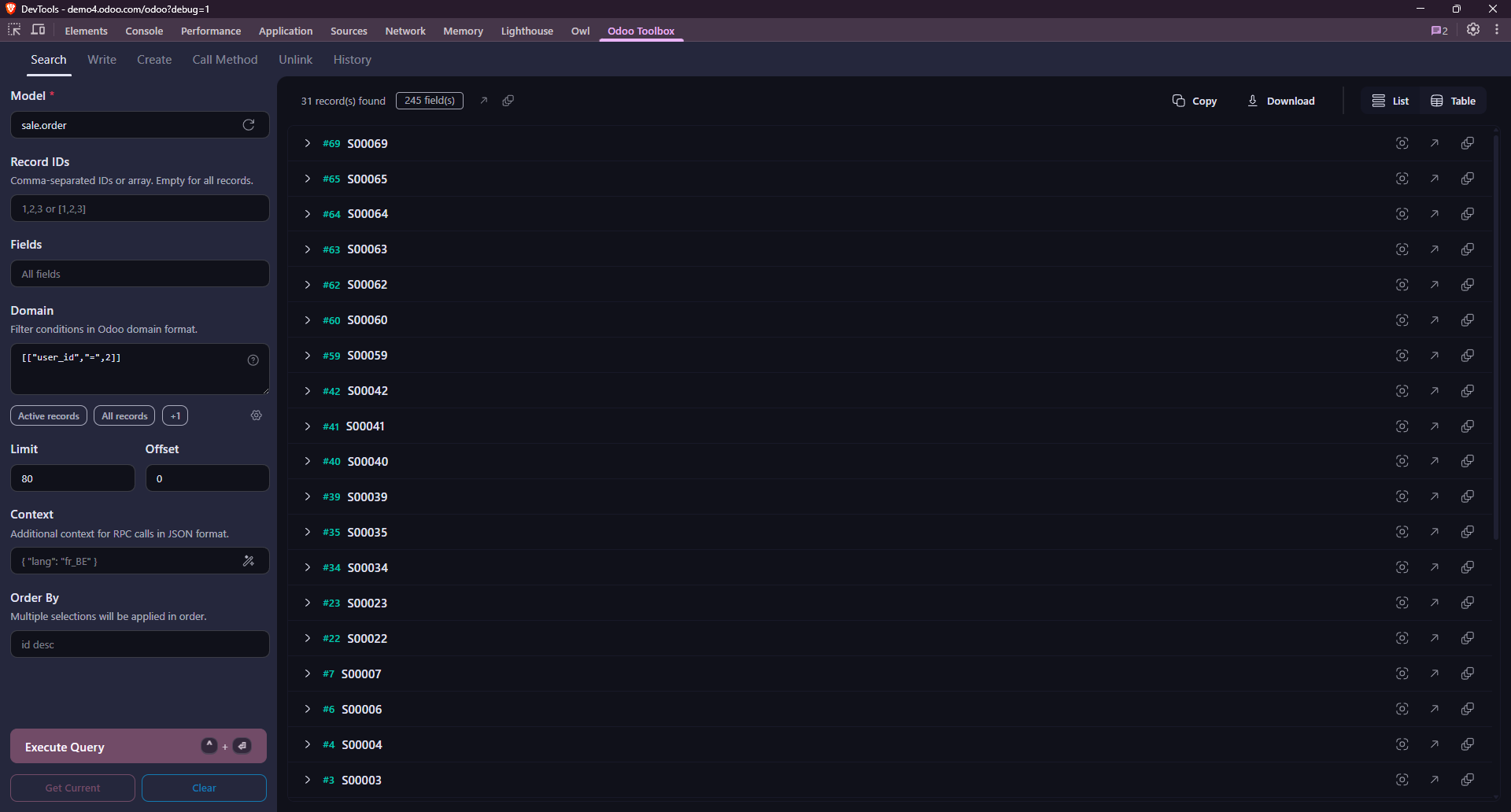
Sidebar
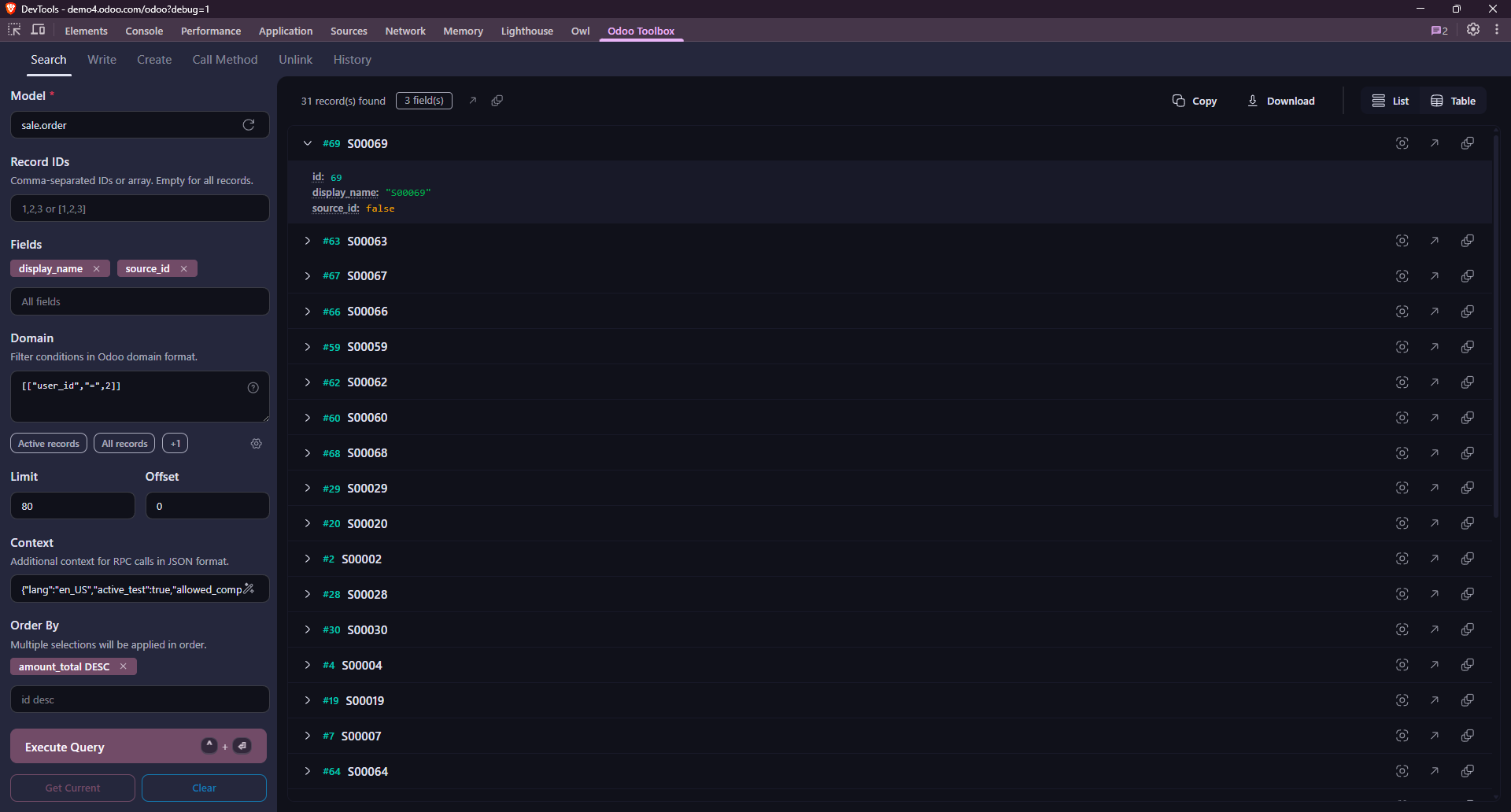
The sidebar on the left contains the input fields used to build your query. The fields displayed change depending on the selected operation (Search, Create, Update, Delete, Call Method). All possible fields are shown in the Search tab; other operations only show the relevant fields.
Even when on a tab other than Search, you can fill in the sidebar fields to run a new search. Useful if you want to change the set of records targeted by your next action.
Model
The Model field expects a technical model name (e.g. res.partner, sale.order). It supports auto-completion to help you find the right model.
IDs
The Record IDs field expects a JSON array of record IDs (e.g. [1, 2, 3]) or a comma-separated list (e.g. 1,2,3). It is used to target specific records in update, delete or call method operations.
Field selection
The Fields input has a search and a list of available fields for the model. Limiting the fields you fetch makes the response easier to read and the call faster.
Leave the input empty to return every field on the model.
Domain filters
Domains follow the standard Odoo domain syntax: a JSON array of conditions combined with & (AND, default) and | (OR) prefix operators.
[
    ["state", "=", "done"],
    ["partner_id.country_id.code", "=", "US"]
]
The panel validates the domain as JSON in real time and highlights syntax errors before you even run the query.
Use an empty array [] to match all records (equivalent to no filter).
Sorting and pagination
The Order By field lets you specify the sort order of results (e.g. name ASC or create_date DESC). It has a search and a list of available fields for the model.
The Limit field caps the number of records returned, and Offset skips a number of records (for pagination).
Execute button
Once your query is configured, click Execute Query to run it. The response appears in the right-hand area.
Get Current button
The Get Current button pre-fills the sidebar fields with values from the current Odoo view. For example, if you are on a partner form, it will fill Model with res.partner and Record IDs with the ID of the displayed record. If you have multiple records selected in a list view, it will fill Record IDs with all of their IDs.
Response viewer
After running a call, the record(s) matching the defined criteria are displayed in the response area.
- A Copy button lets you copy the full response to your clipboard. Download lets you save it as a JSON file.
- Errors returned by Odoo (e.g. access rights, missing fields) are displayed with their message and traceback.
Display options
The response defaults to list view. In the Search tab, you can also switch to table view using the toggle button in the top right.
Record action buttons
In list view, each record has quick action buttons to focus it, open it in Odoo, or open it as a popup.
| Icon | Action |
|---|---|
 | Focuses the record in DevTools - useful as a starting point for further operations (update, delete, call method) on that specific record. |
 | Opens the record in Odoo (replaces the content of the parent window). |
 | Opens the record in an Odoo popup - useful to quickly inspect a record's details without losing the context of your current work in the parent window. |
Operations
Use the top menu to choose what you want to do. Each operation shows only the sidebar fields relevant to it.
Search
The most common operation and the default one. Returns a list of records matching the given criteria (domain, model, …).
Model · Record IDs · Fields · Domain · Order By · Limit · Offset · Context
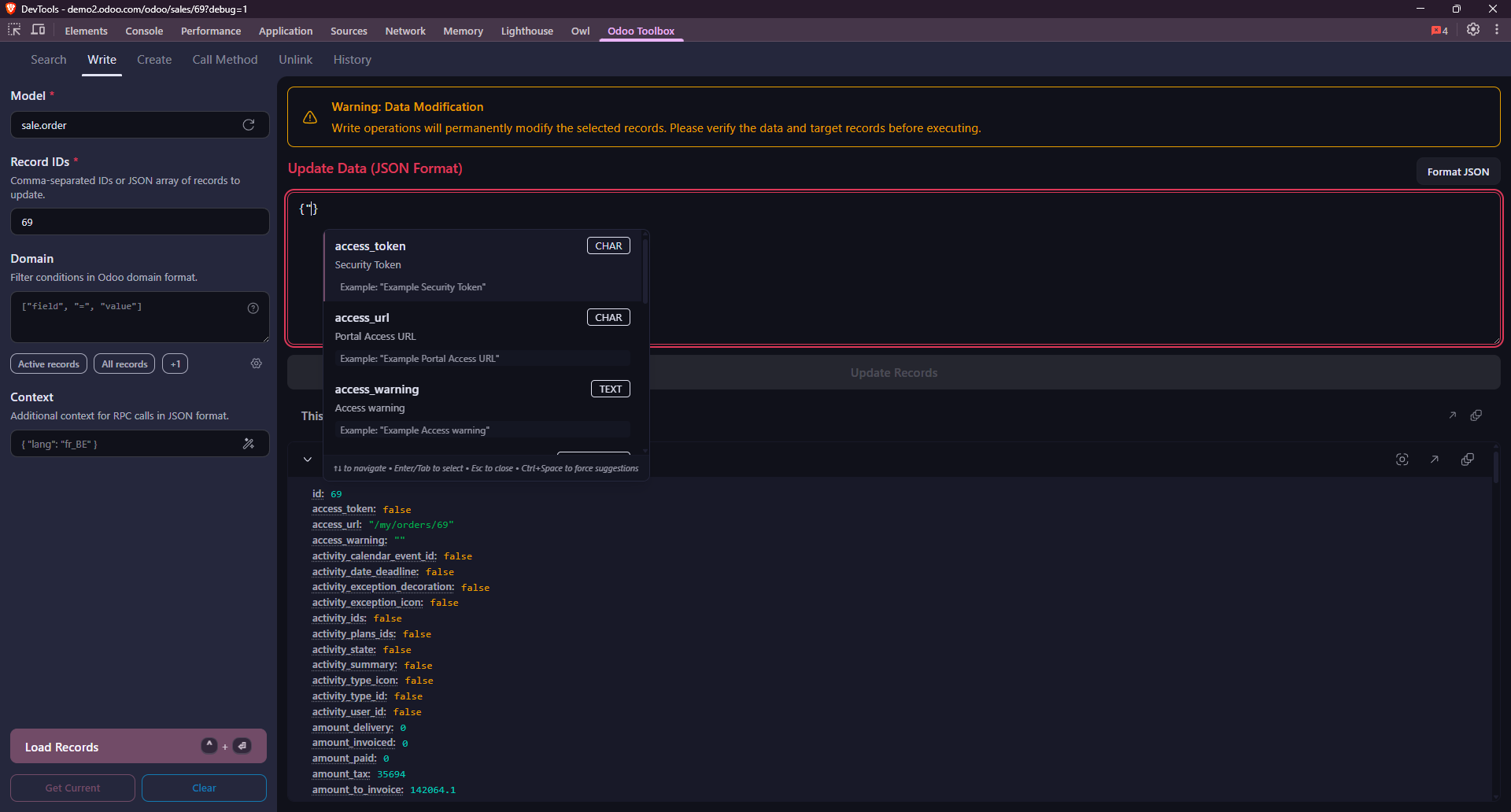
Write
Updates existing records matching the given criteria.
This operation modifies existing records in the database. Make sure the IDs you provide match the records you intend to update, and that the values are correct. If unsure, test on a test database first.
Model · Record IDs · Domain · Context
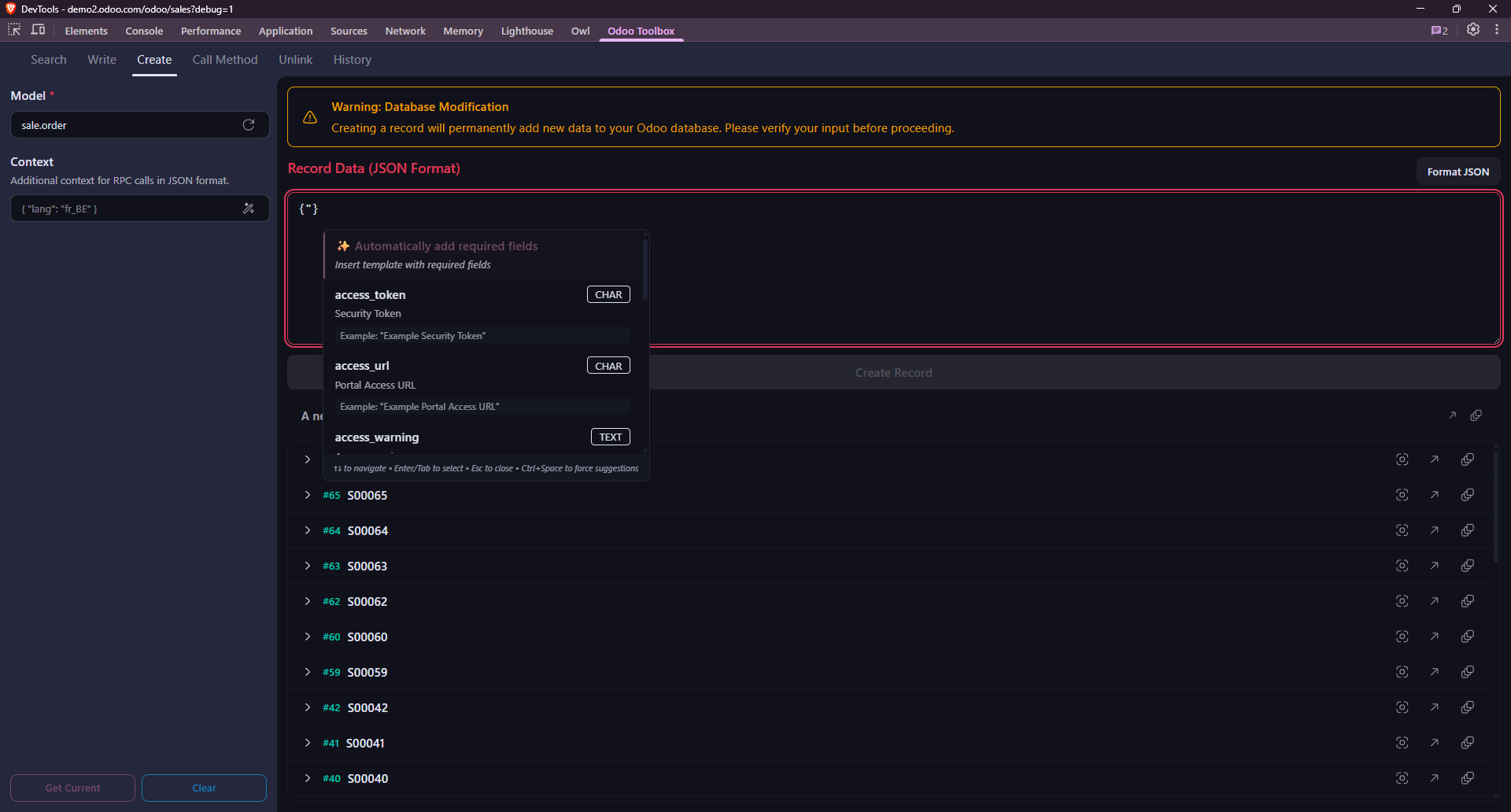
Create
Creates a record with the given values and displays it once created.
This operation creates new records in the database. Make sure the values you provide are correct, and that you are on a test database if you are not certain.
Model · Context
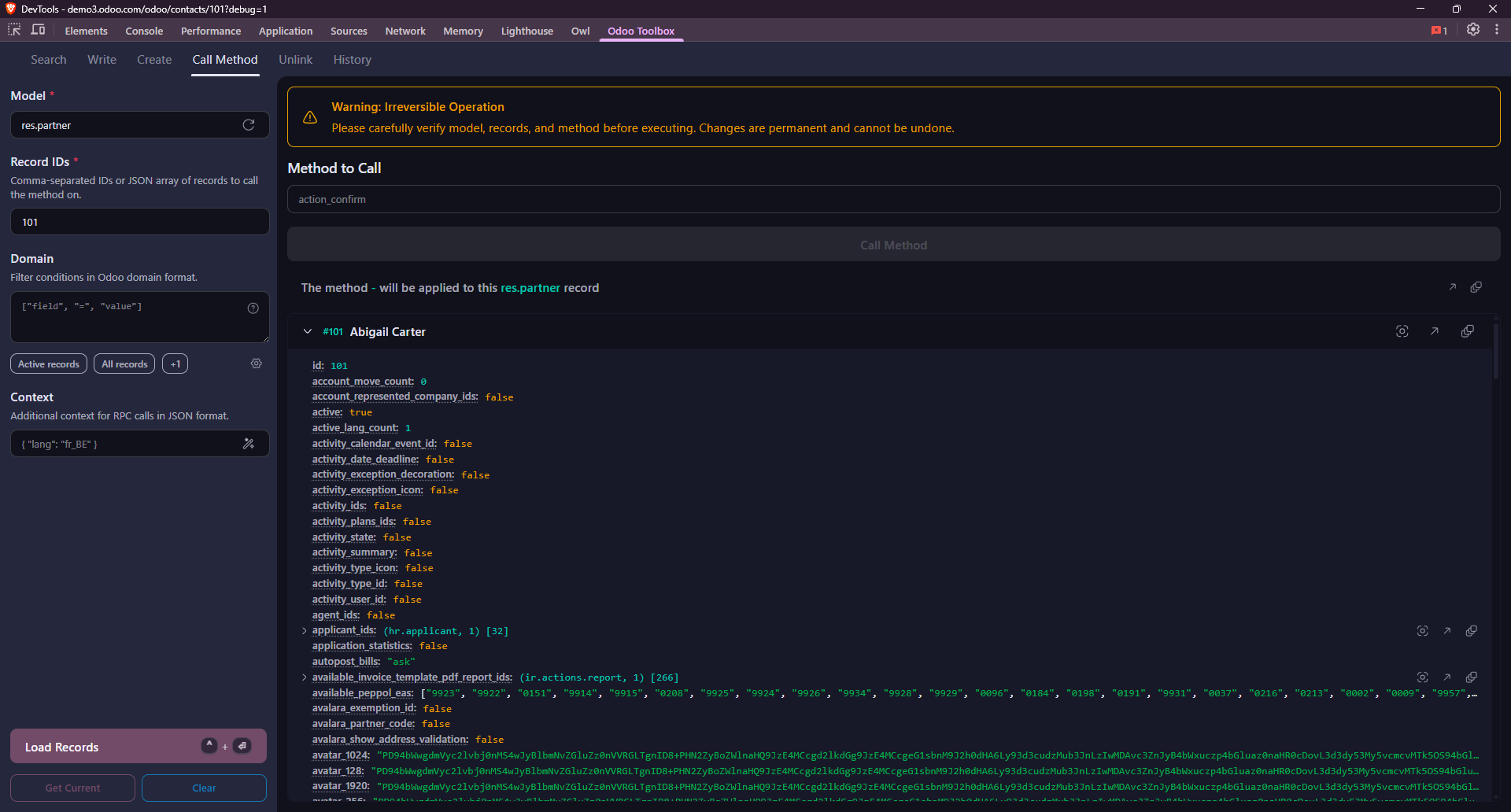
Call Method
Calls any public method on a model. Useful for triggering business logic, wizards or custom methods.
Model · Record IDs · Domain · Context
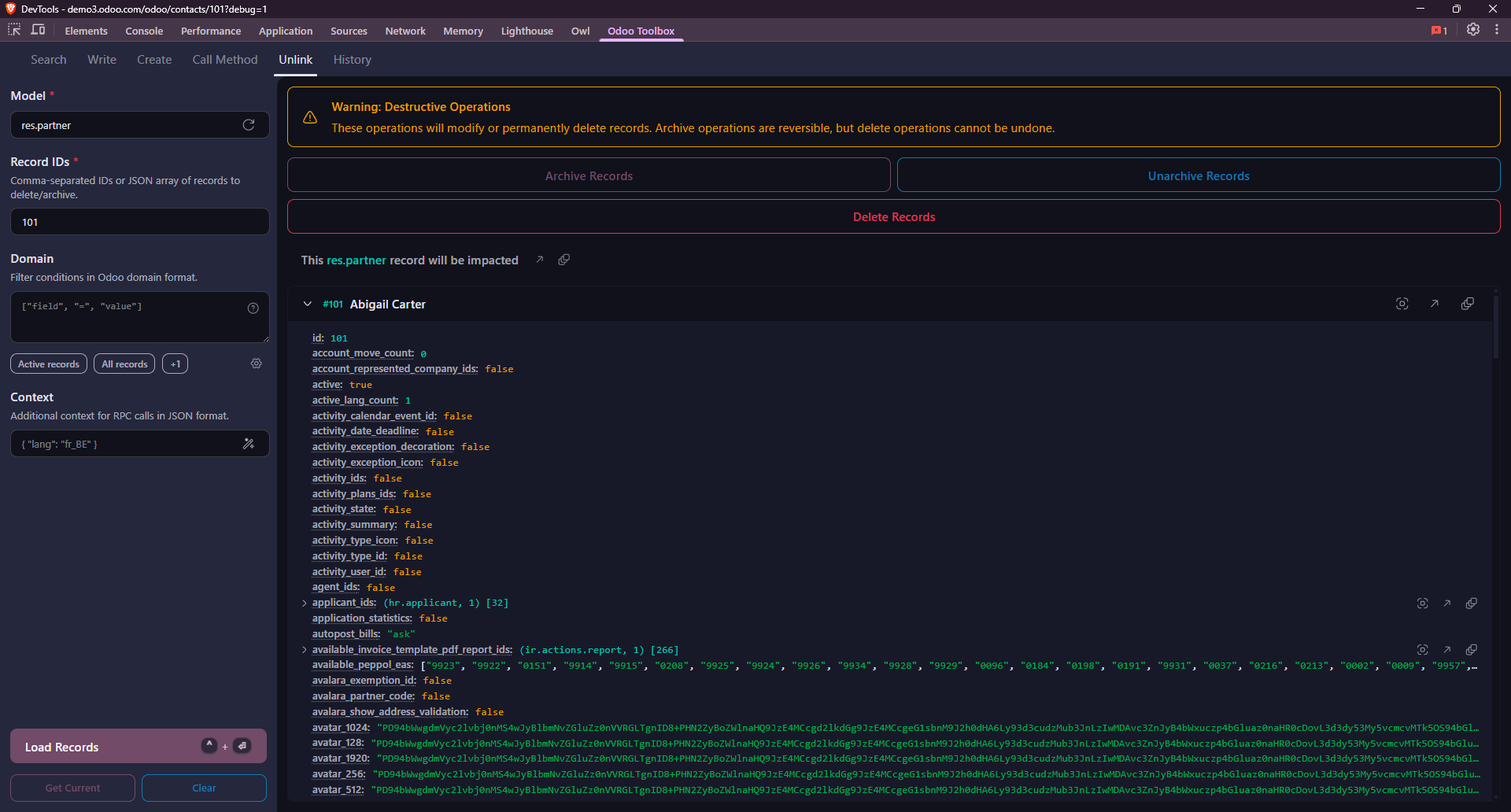
Delete & Archive
Archives, unarchives or permanently deletes the matching records.
This operation modifies or permanently deletes existing records in the database. Make sure the IDs you provide match the records you intend to modify or delete. If unsure, test on a test database first.
Model · Record IDs · Domain · Context
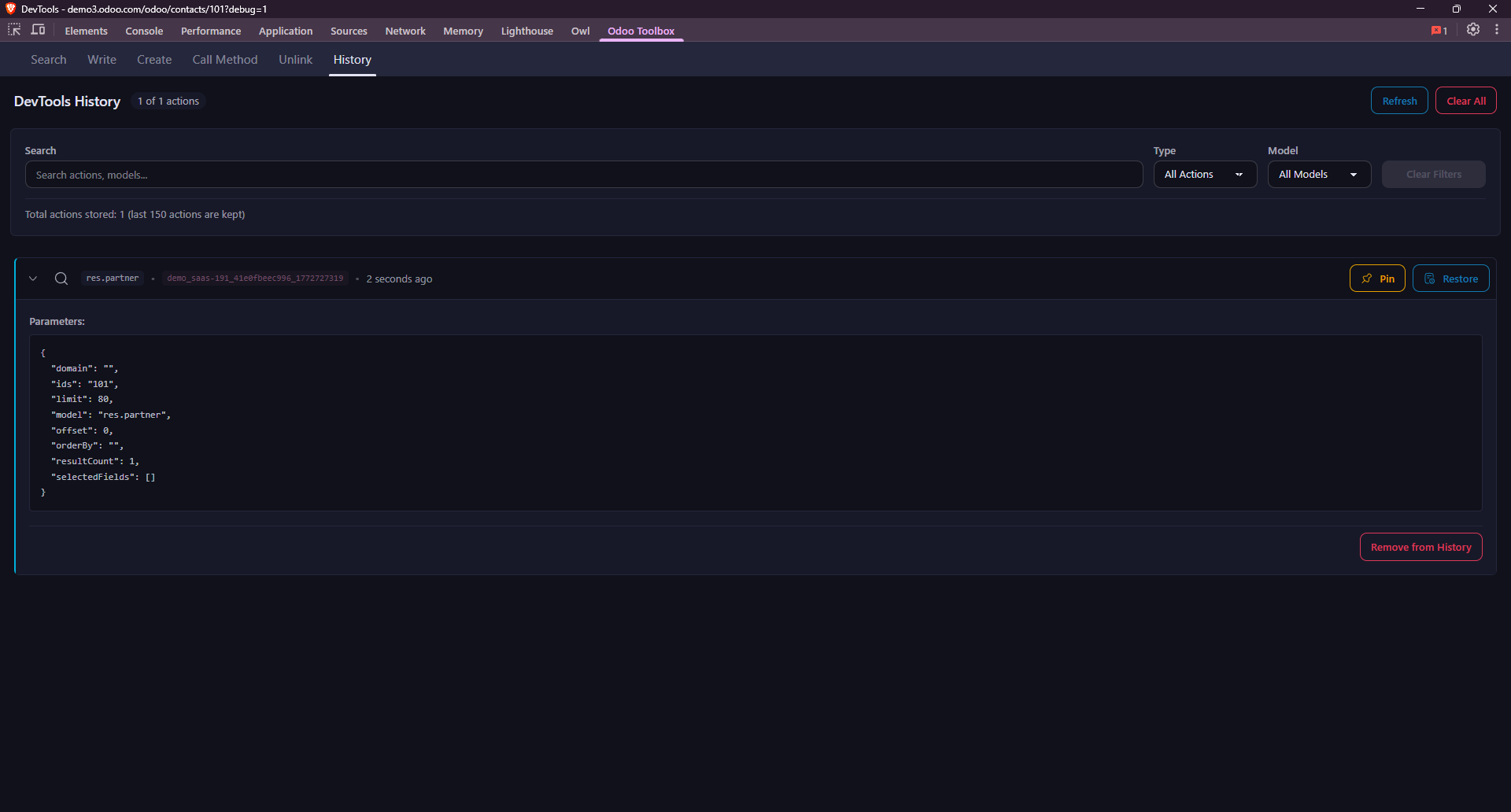
Request History
The panel keeps a history of your recent queries (up to 150), accessible via the History tab in the top menu. You can browse each request's details (model, domain, payload, response) and easily re-run or copy them.