Project Favorites
Project Favorites are the flagship feature of the Odoo.SH part of Odoo Toolbox. They let you pin your most-used Odoo.SH projects, give them custom names, and reorder them however you like - so you can access what you need at a glance, without having to search through the full project list.
Favorites are accessible from three places:
- The Extension Popup - from any page, even outside of Odoo.SH.
- The Odoo.SH home page - favorites are displayed at the top of the project list.
- The Extension options page - a dedicated section for managing your favorites.
Adding a favorite
From the project list on Odoo.SH, Odoo Toolbox adds a ⭐ icon next to each project. Click it to pin the project to your favorites.
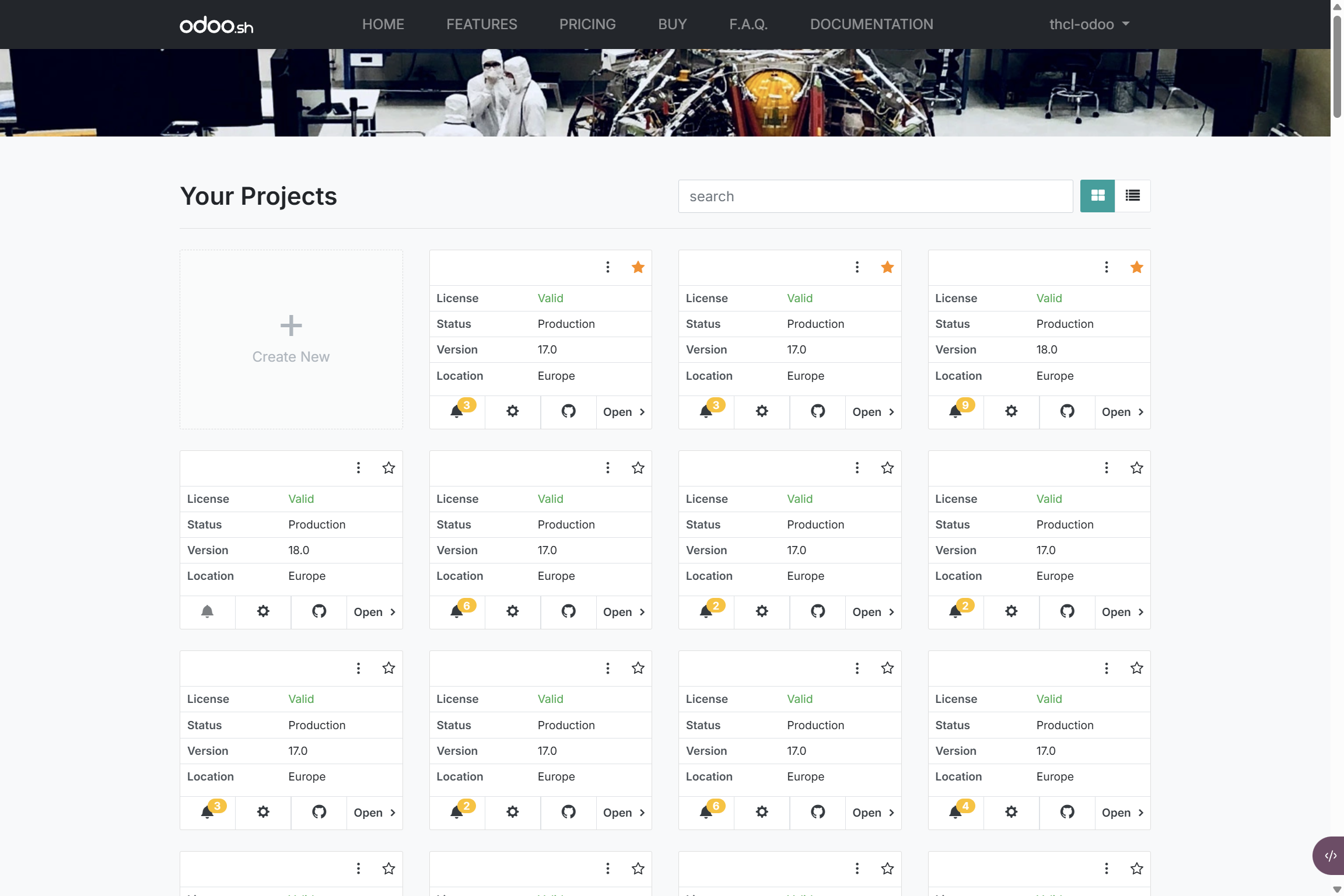
You can add as many projects to your favorites as you like. The order in which they appear is fully customizable.
Renaming a favorite
By default, a favorite displays the project name as it appears on Odoo.SH. You can assign a custom display name, which is useful when project names are long, unclear, or when you manage several similar projects.
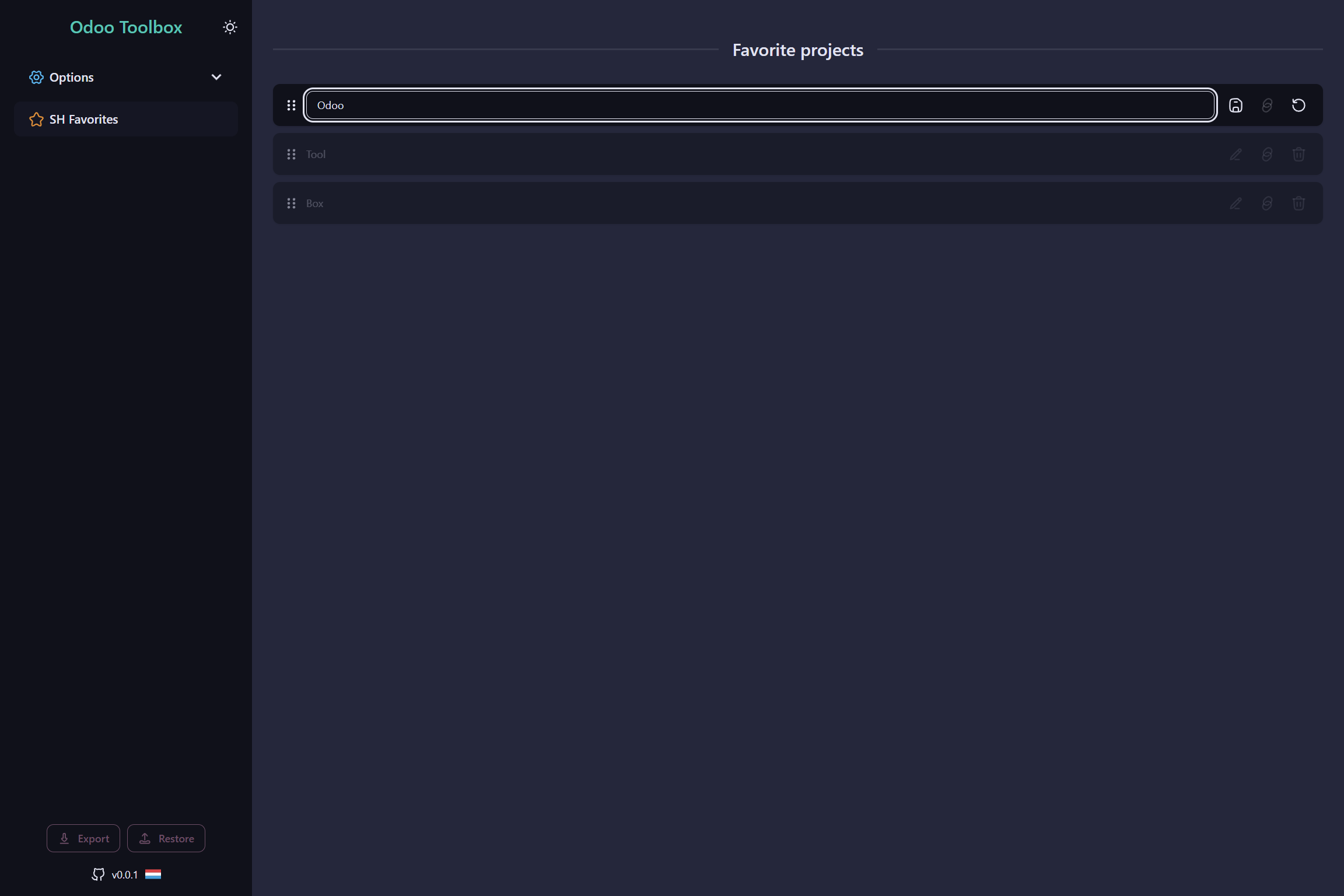
To rename a favorite, go to the Odoo Toolbox extension options, then to the "SH Favorites" section. Click the edit button of the favorite you want to rename, type the new name, and press Enter to save.
Reordering favorites
Favorites can be reordered via drag and drop from the extension options. Use the drag handle on the left of each favorite to move it up or down the list. The order you set is the one displayed on the Odoo.SH home page and in the Extension Popup.
Removing a favorite
Click the ⭐ icon again on a pinned project to remove it from your favorites. The project remains normally accessible in the full Odoo.SH project list. You can also remove a favorite from the extension options by clicking the delete button to the right of the favorite you want to remove.
Accessing favorites from the popup
The Extension Popup displays your favorites on all pages, including outside of Odoo.SH. Click a favorite in the popup to open the corresponding project on Odoo.SH directly.
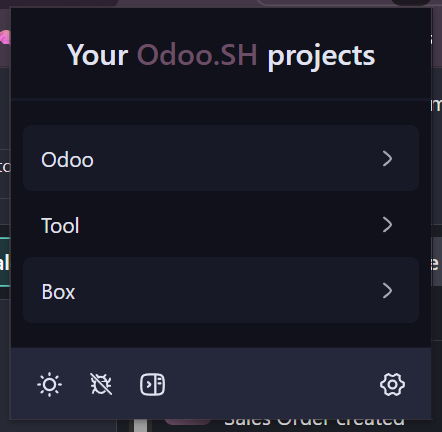
To open a project in a new tab, hold Ctrl (Cmd on Mac) while clicking the favorite in the popup. You can also middle-click to open the project in a new tab.